
Chat UI
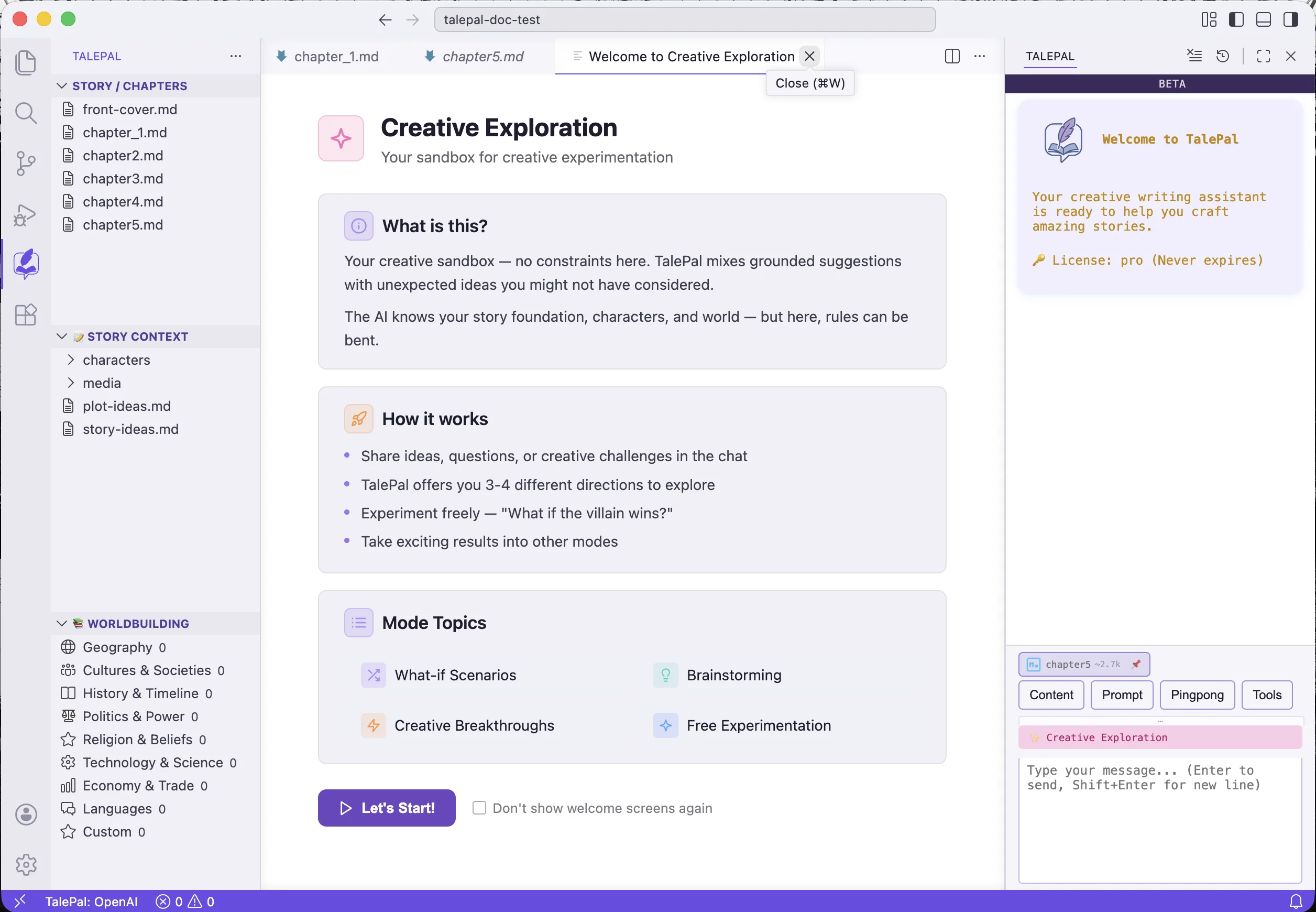
The chat panel is your main interface for talking to TalePal. It lives in the sidebar and adapts to whichever creative mode you're working in.
The chat panel
The panel has four tabs across the top and a text input at the bottom:
- Content — select which files to include as context for the AI
- Prompt — save and recall favorite prompts
- Pingpong — switch between creative dialogue modes
- Tools — quick access to readability check, spellcheck, EPUB export, and more
The mode badge below the tabs shows which creative mode is currently active (e.g. "Creative Exploration").
Sending messages
Type in the input field and press Enter to send. Use Shift+Enter for a new line within your message.
TalePal's responses stream in real-time. The AI automatically receives relevant context based on your current mode — you don't need to manually attach files for basic conversations.
Content picker
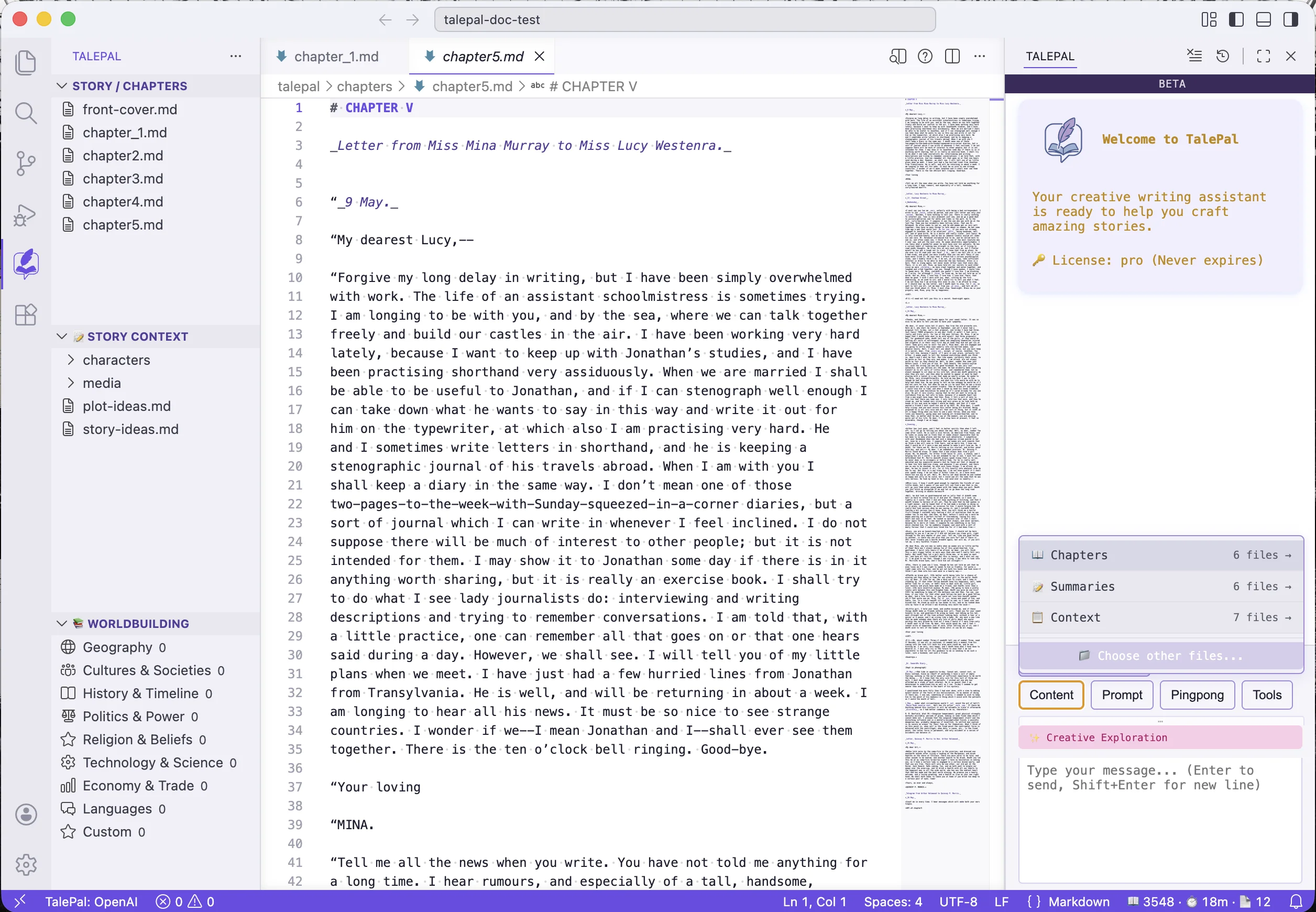
Click the Content tab to control what the AI sees. You can attach:
- Chapters — select specific chapters to include as context
- Summary files — character summaries, plot analysis, worldbuilding overviews
Each item shows its approximate token count so you can manage context size. Items with a checkmark are included in the next message.
Favorite prompts
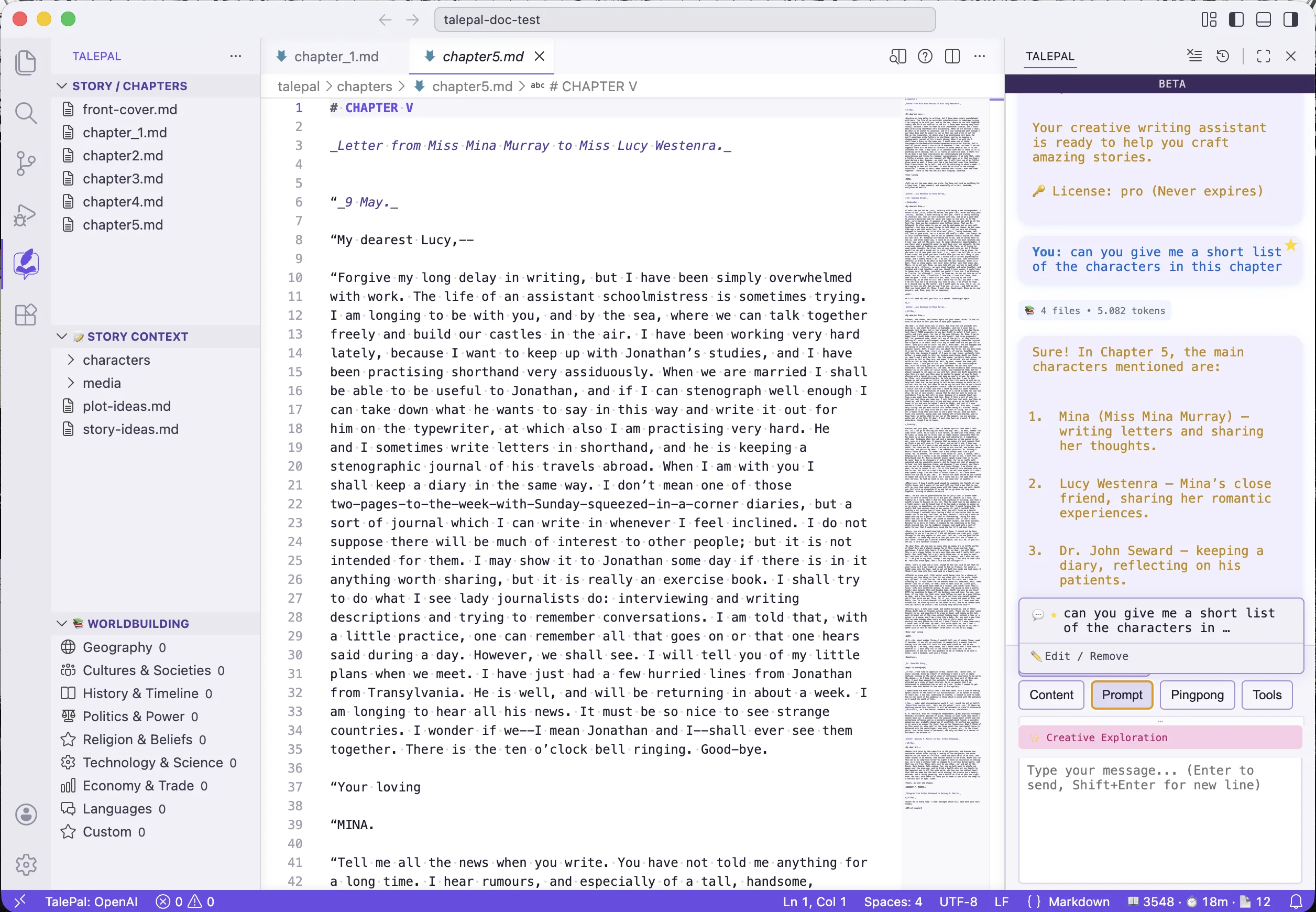
Click the Prompt tab to save prompts you use frequently. When you find a prompt that works well — a good character question, a scene analysis request, an editing instruction — save it as a favorite so you can reuse it with one click.
To save a prompt: type it in the chat, then click the star/save icon. To recall: open the Prompt tab and click any saved prompt to insert it.
@-mentions
Type @ in the chat input to reference specific characters, chapters, or worldbuilding entries. A dropdown appears with all available items grouped by type.
When you @-mention an item, TalePal includes its full content as context in your message — so the AI has the details at hand without you needing to paste anything.
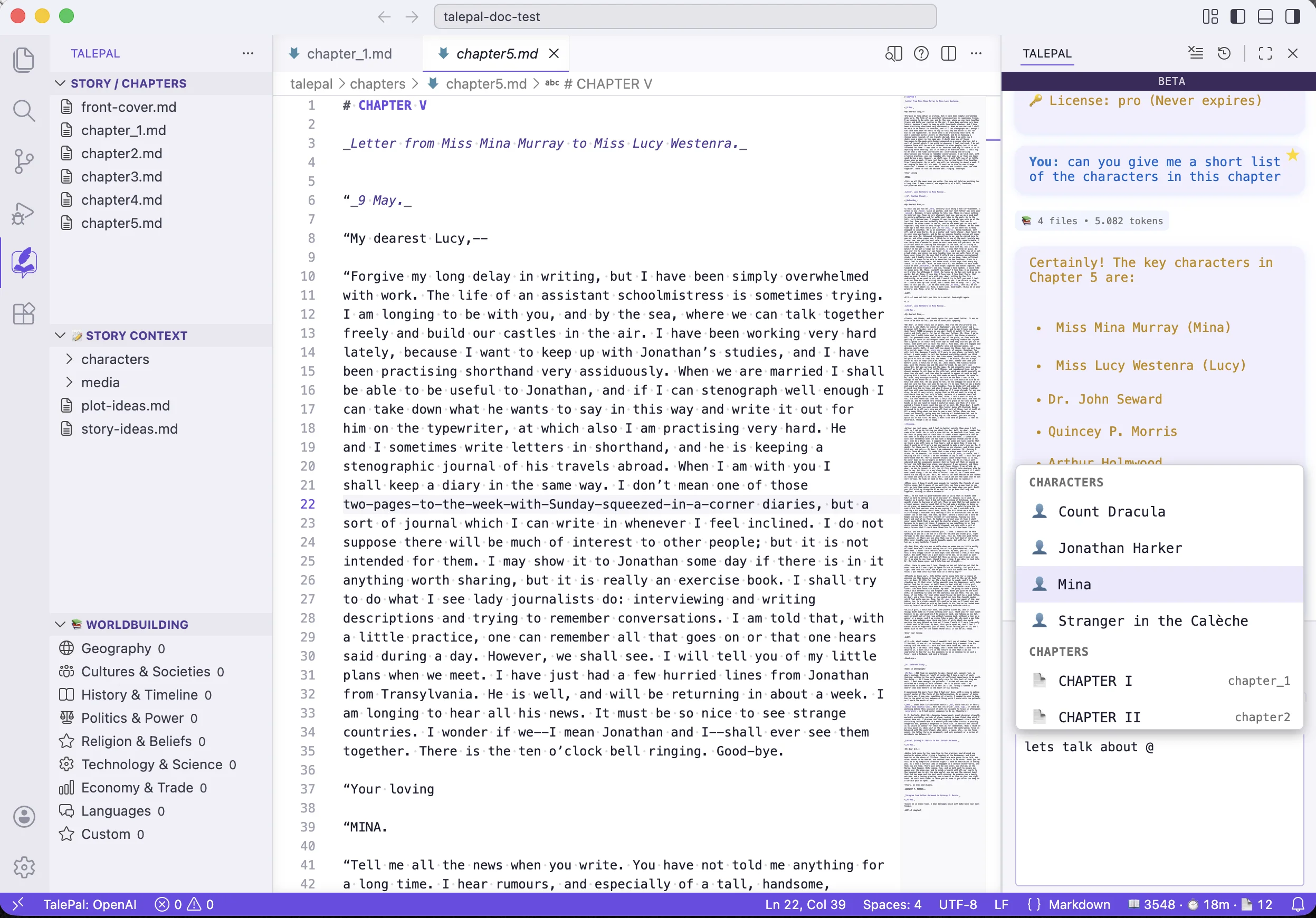
The mention list updates automatically as you add characters and worldbuilding entries (via analysis or manually).
Tips
- Be specific — "How can I improve the pacing in Chapter 3?" works better than "Help me write better"
- Use the right mode — Story mode for prose, Character mode for character work, Worldbuilding mode for world details
- Attach context — if the AI seems to miss something, check the Content tab and attach the relevant file
- @-mention freely — referencing a character by name with @ gives the AI their full profile
Next: Pingpong Modes — understand the five creative partner modes and when to use each.