
Manual Content
Not everything comes from analysis. You can add characters, worldbuilding entries, plot ideas, and media files by hand at any time.
Story Context tree
The Story Context section in the left sidebar is your workspace for all non-chapter content: characters, media files, plot ideas, and story ideas.
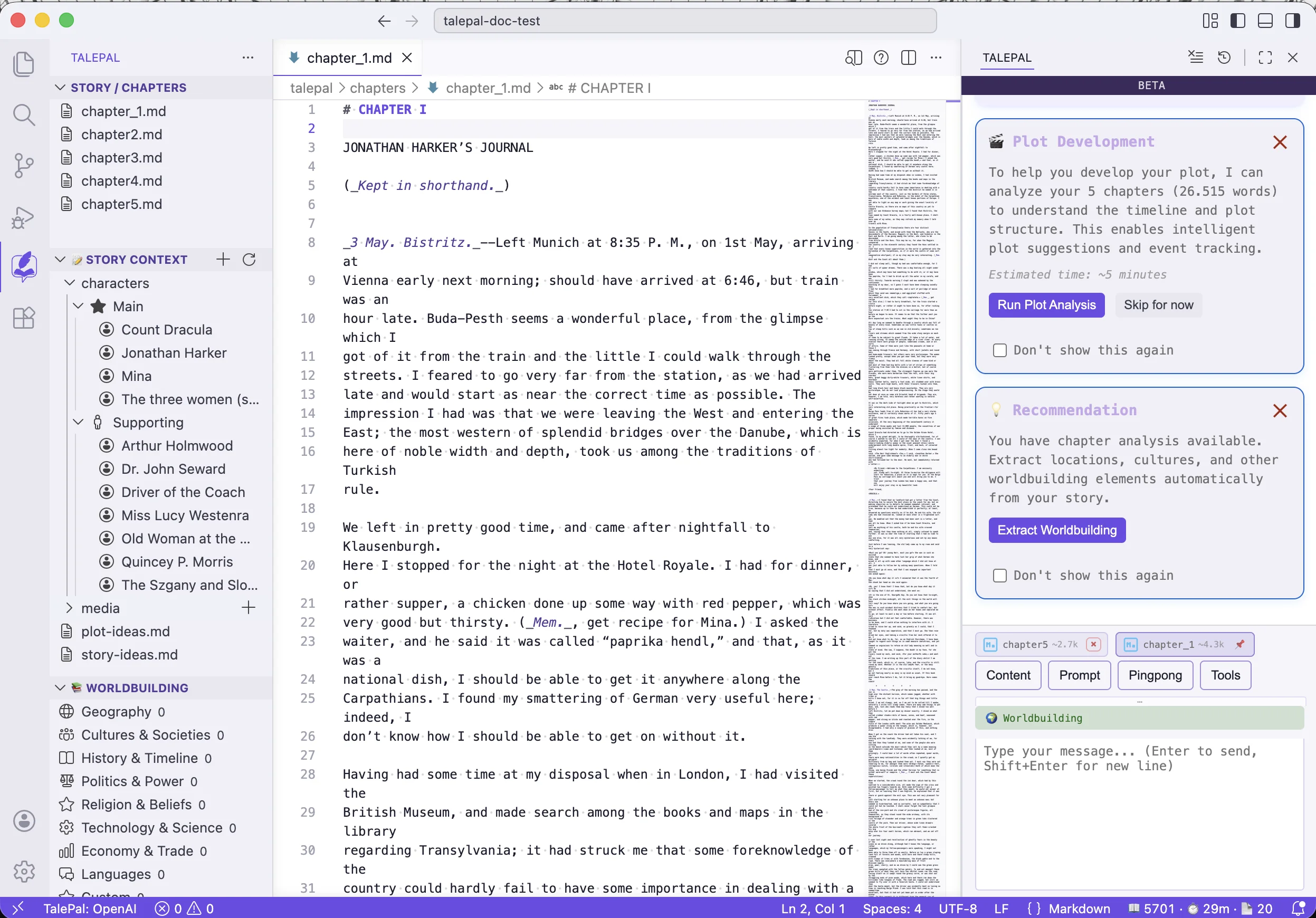
Use the + button in the Story Context header to add new files or folders. The refresh button reloads the tree if you've added files externally.
Characters
Characters appear under Story Context > characters, grouped by significance (Main, Supporting). Click a character to open their profile editor — a form-based view where you can edit names, descriptions, motivations, relationships, and more.
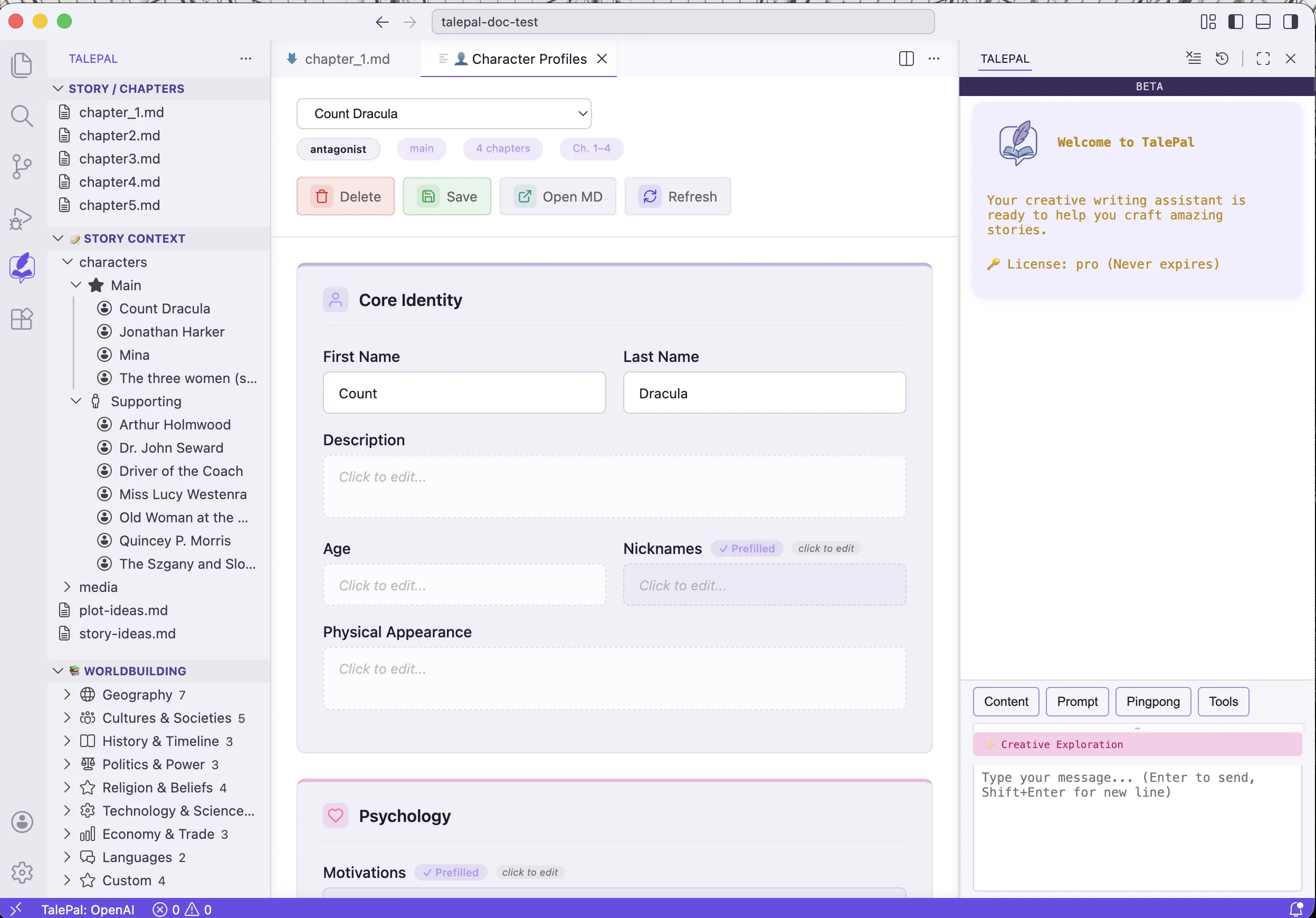
The profile editor shows:
- Core Identity — name, description, age, nicknames, appearance
- Psychology — motivations, fears, goals
- Story role — significance, arc, relationships
- Custom fields — add your own fields for anything else
Fields marked "Prefilled" were filled by the analysis. You can edit them freely — your changes are preserved even if you re-run analysis (a yellow "Update Available" badge will appear if the analysis found something different).
To add a character manually, use the + button on the characters section header.
Worldbuilding wiki
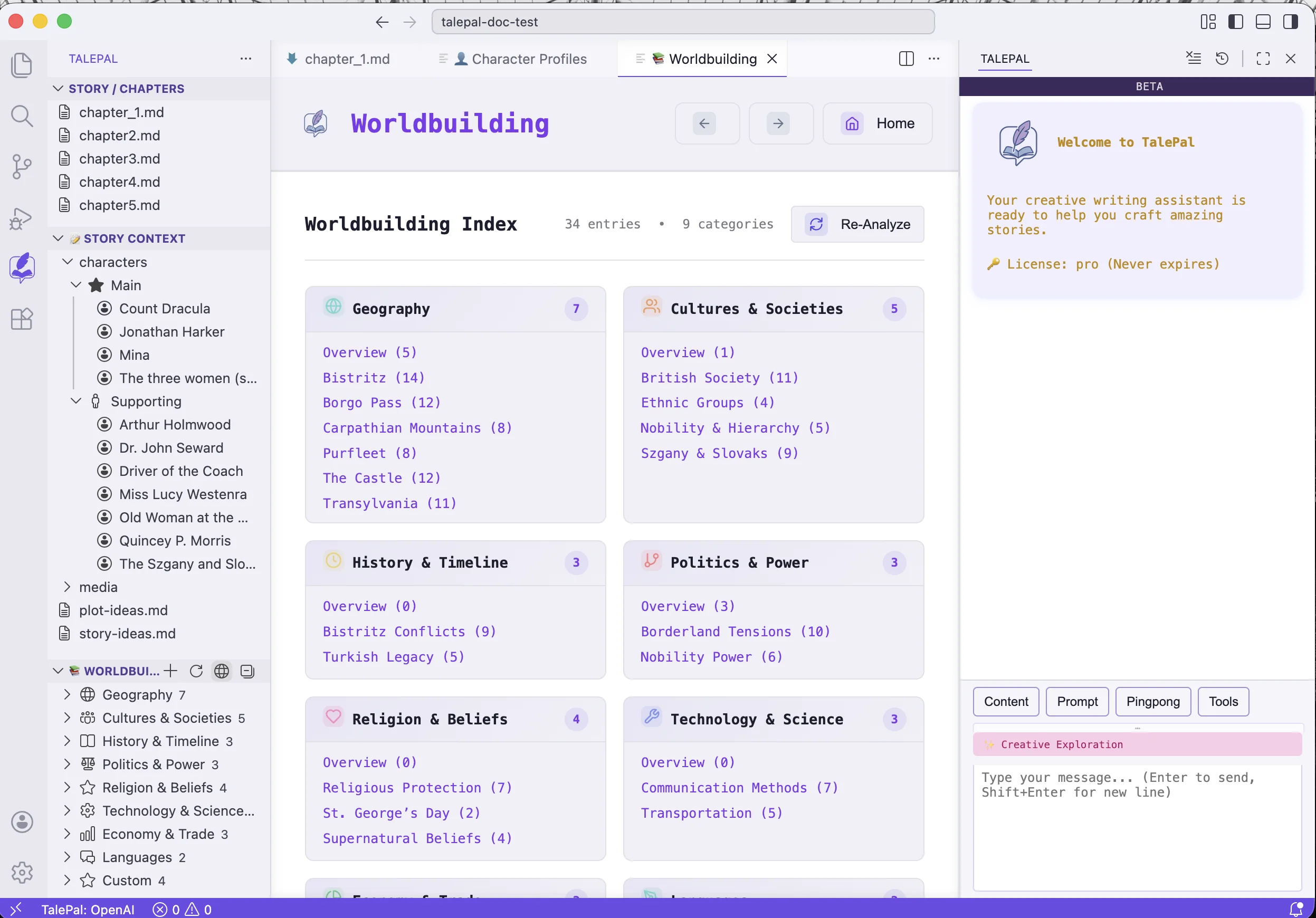
The Worldbuilding section in the sidebar shows your wiki entries organized by 9 categories (Geography, Cultures & Societies, History & Timeline, Politics & Power, Religion & Beliefs, Technology & Science, Economy & Trade, Languages, Custom).
Click any entry to view it. Click Edit to modify it directly.
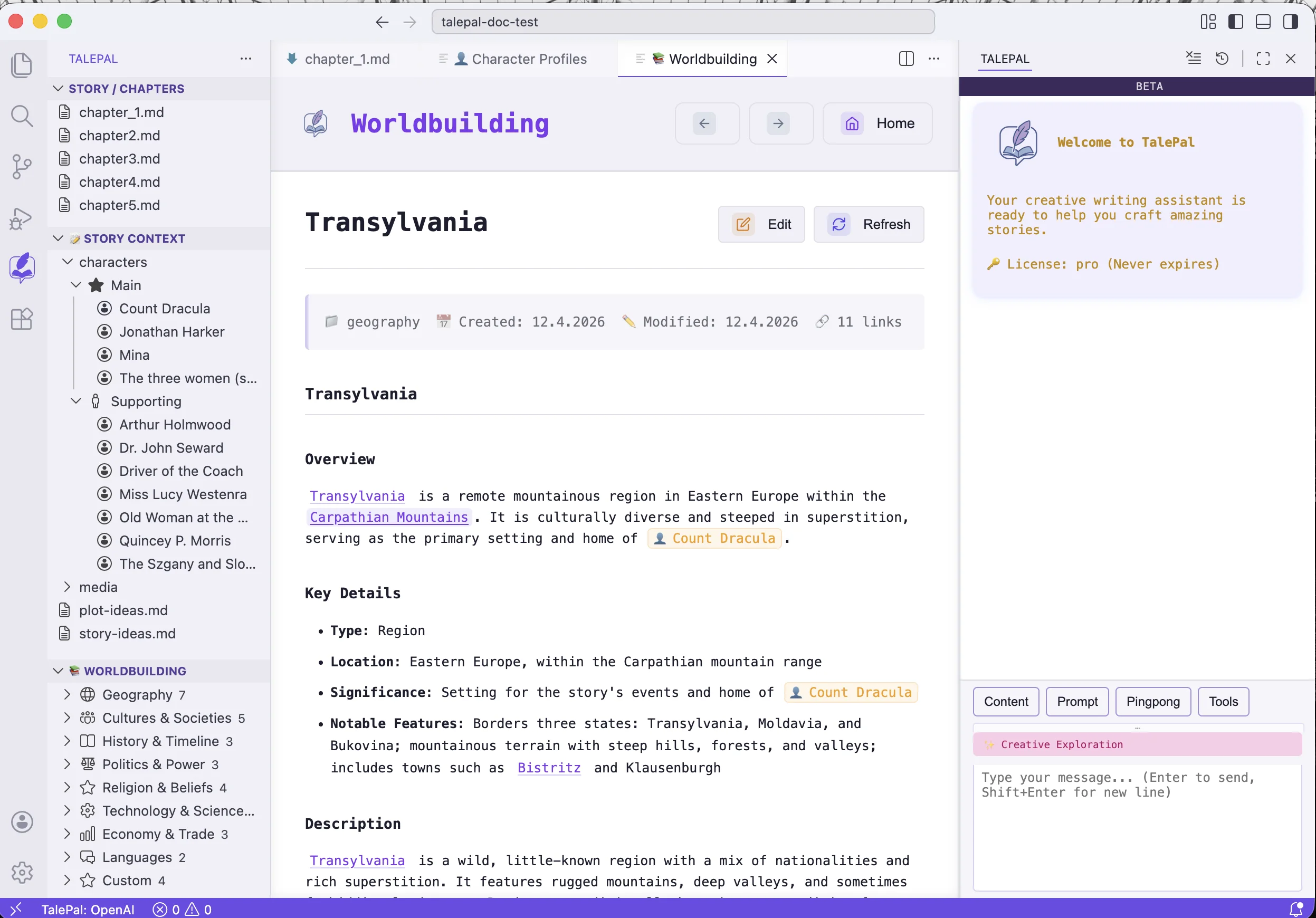
Each entry includes an overview, key details, a full description, and cross-references to other entries and characters via [[wiki links]].
Worldbuilding entries can be:
- Extracted from chapters — click "Extract Worldbuilding" from the Worldbuilding mode welcome card or the recommendation card
- Created manually — use the
+button in the Worldbuilding section header, or ask the AI in Worldbuilding mode to create entries for you
Plot ideas and story ideas
Two scratchpad files live in the Story Context root:
- plot-ideas.md — your plot structure notes, story arcs, key events, turning points. This file is loaded as context in Plot Development mode.
- story-ideas.md — themes, tone, atmosphere, influences, inspiration. A freeform brainstorming space.
Both are plain Markdown. Write in whatever structure works for you.
Media files
The media folder in Story Context holds images, cover art, and other assets. You can:
- Import images via the
+button on the media folder - Right-click any file in the media tree to Copy Relative Path or Copy as Markdown Image — paste the result directly into a chapter or front cover file
This is how you embed cover images in your front cover for EPUB export.
Next: Top-Down Analysis — run analysis on your manuscript and explore the dashboard.