
Top-Down Analysis
When you have chapters written (or imported), TalePal can analyze them to extract characters, plot structure, timeline, and worldbuilding. This is the "top-down" view of your manuscript — the AI reads what you've written and builds a structured understanding of it.
Running the analysis
When TalePal detects chapters without analysis data, it shows an "Analysis Recommended" card in the chat panel. Click Run Analysis to start.
The analysis runs in the background. You'll see a progress indicator showing each step as it completes: chapter summaries, character extraction, and character profiles.
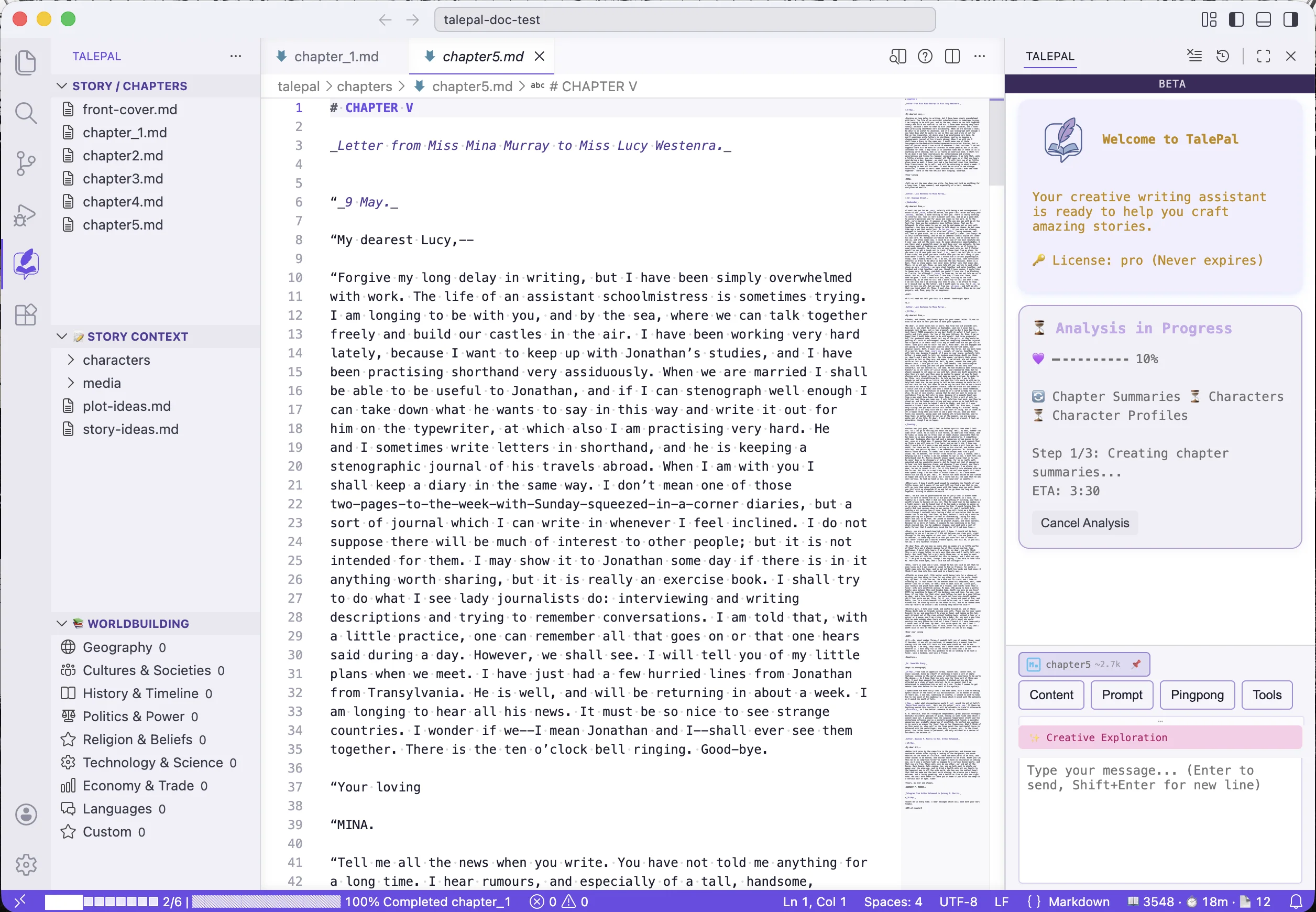
You can continue writing while the analysis runs.
The Dashboard
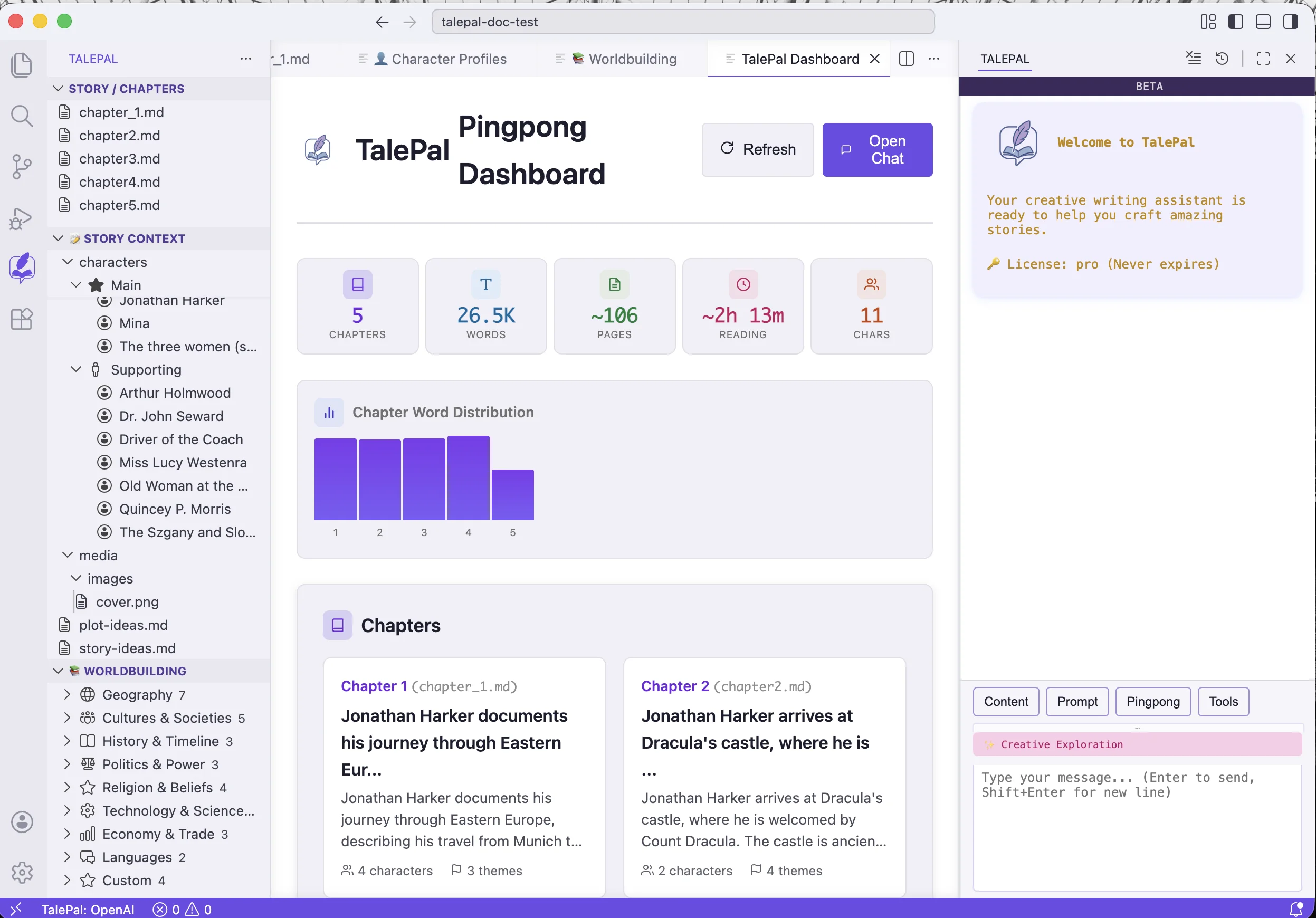
After analysis completes, open the dashboard via the Tools menu or by clicking the dashboard link in the chat. The dashboard shows an overview of your entire manuscript:
- KPIs — chapter count, total words, approximate pages, reading time, character count
- Chapter Word Distribution — a visual chart of chapter lengths
- Chapters — cards for each chapter with summaries, character counts, and theme tags
- Characters — cards for each character with role badges and chapter appearances
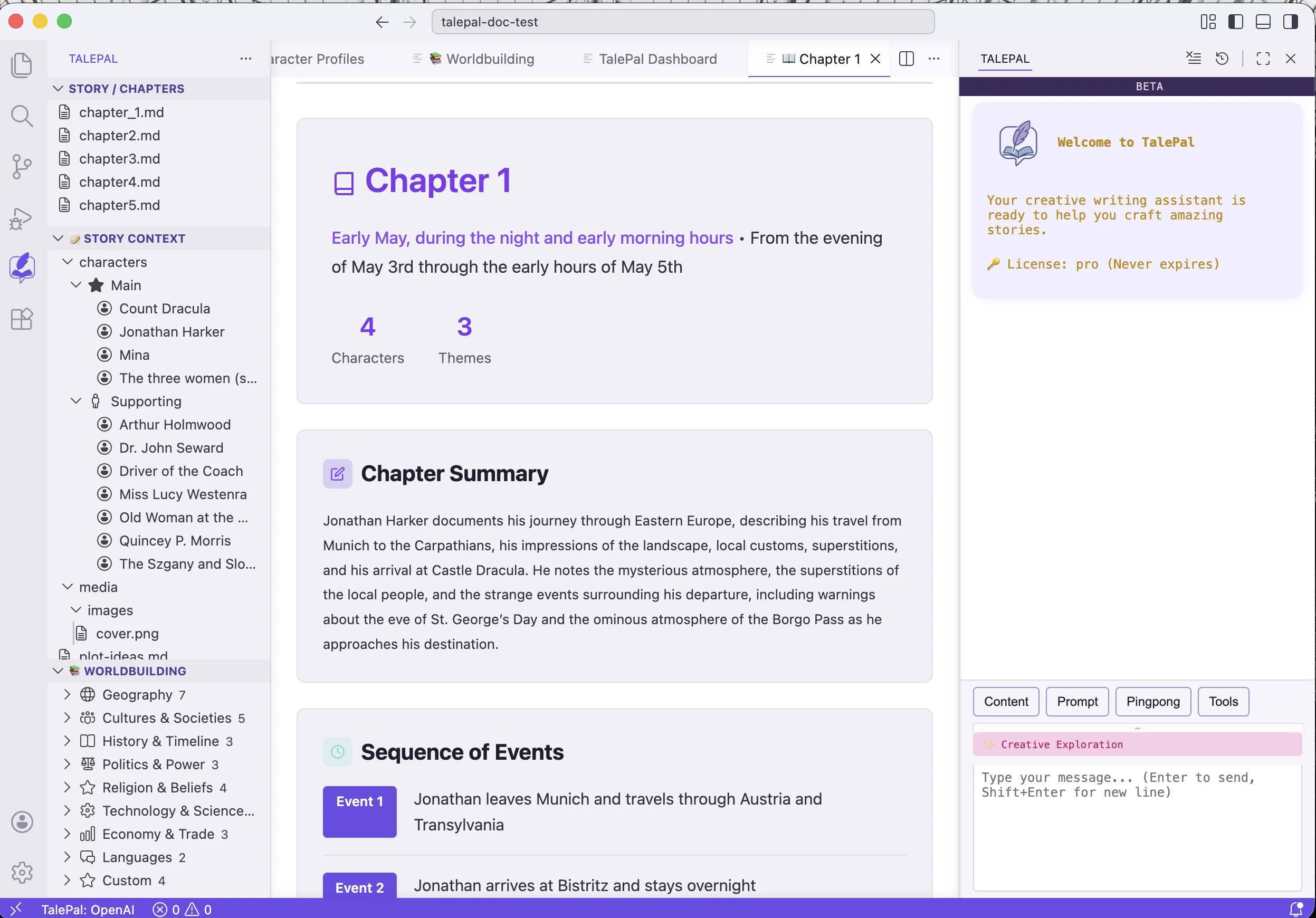
Chapter detail
Click any chapter card in the dashboard to see its full breakdown: timeline, chapter summary, sequence of events, and the characters and themes that appear in it.
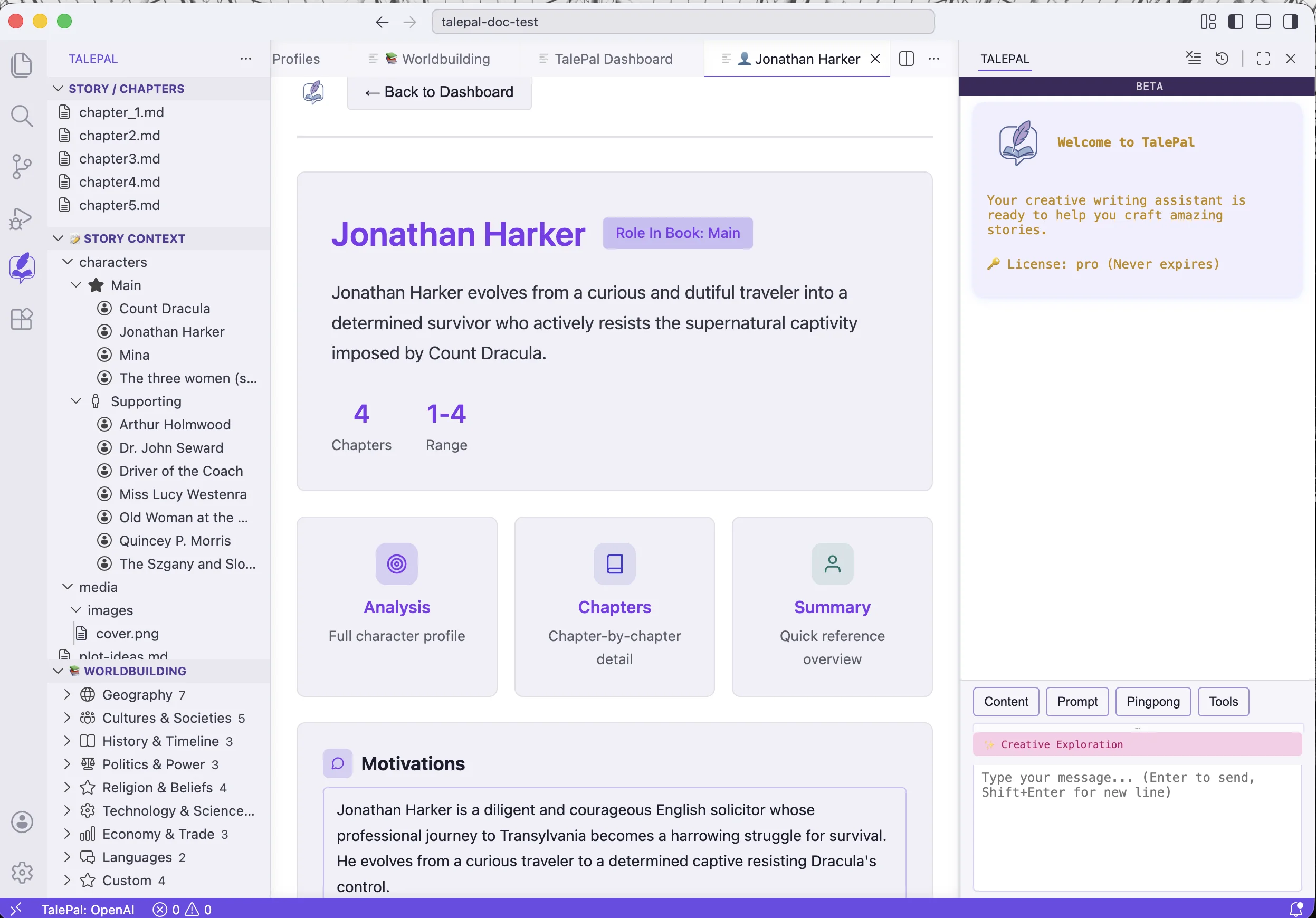
Character detail
Click any character in the dashboard to see their full profile: role badge, arc summary, chapter range, motivations, and three drill-down tabs:
- Analysis — the full AI-generated character profile
- Chapters — chapter-by-chapter appearance details
- Summary — a quick reference overview
What the analysis produces
The analysis pipeline runs these steps automatically:
| Step | What it creates |
|---|---|
| Chapter Summaries | A summary for each chapter with key events and themes |
| Character Extraction | Identifies all characters across chapters |
| Character Profiles | Deep profiles with motivations, arcs, relationships |
These results feed into:
- The dashboard (visual overview)
- The character editor (editable profiles in the sidebar)
- The smart context system (AI conversations reference the right characters and plot)
- The worldbuilding extraction (can be triggered separately from Worldbuilding mode)
Re-running analysis
If you add or change chapters, you can re-run the analysis:
- From the dashboard: click Refresh or Re-Analyze
- From the chat: the "Analysis Recommended" card will reappear if it detects changes
Re-running preserves your manual edits to character profiles. If the analysis finds something different, a yellow "Update Available" badge appears — you choose whether to accept the update or keep your version.
Tips
- Run analysis after importing — it only takes a minute and gives TalePal a deep understanding of your manuscript
- Don't wait until the book is finished — analysis works with any number of chapters. Run it as you go.
- The dashboard is read-only — it's a visualization of your analysis data. To edit characters, use the character editor in the sidebar.
Next: Tools Menu — readability check, spellcheck, EPUB export, and more.